The Permissions Your Dictation App Actually Needs, and Why
"Enable productivity magic" is not a permission description. Here's what each permission actually does.
I installed a dictation app last year that asked for accessibility permission "to enhance your experience." That's not a reason. That's a fog machine.
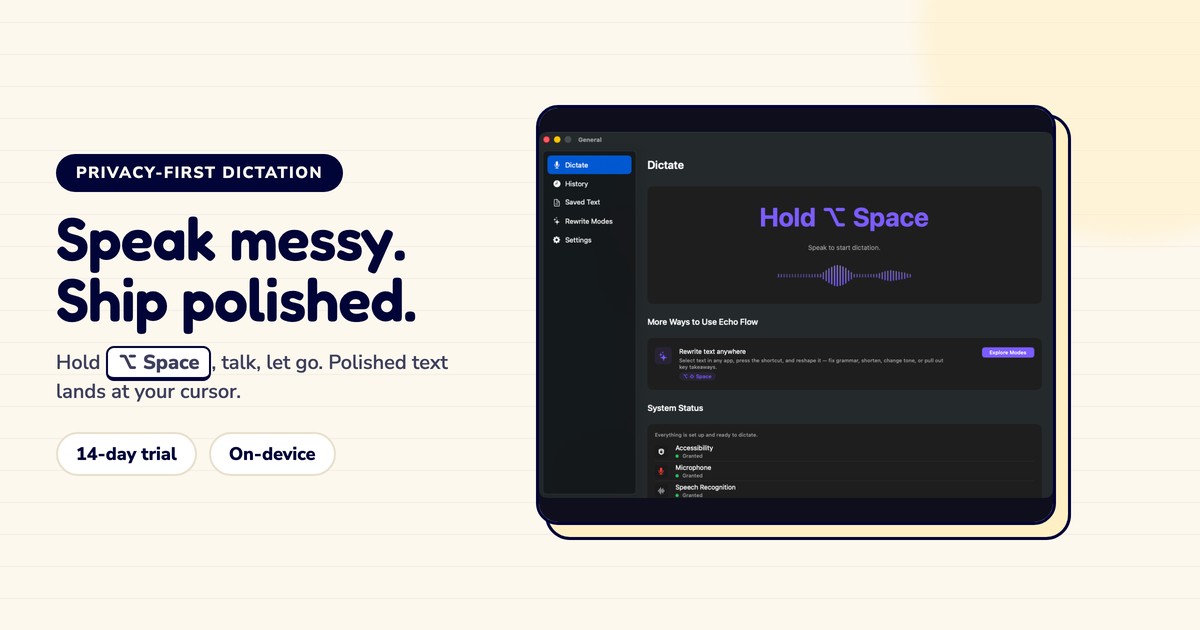
Good permission requests explain the exact job. Here's what Echo Flow asks for, and why.
The three permissions you actually need
Microphone permission , lets the app hear you. Without this, no dictation. Simple.
Speech Recognition permission , lets macOS transcribe your audio. Without this, the app can hear you but can't turn speech into text.
Accessibility permission , lets the app paste text where your cursor is. Without this, transcription works but the text doesn't land in your app.
That's it. Three permissions. Each one has a clear job.
✓
Microphone , the app needs to hear you
✓
Speech Recognition , macOS needs to transcribe your audio
✓
Accessibility , the app needs to paste text into other apps
What each permission does (plain English)
Microphone: When you hold the dictation shortcut, the app records audio through your mic. That's it. It's not always listening , only when you activate it.
Speech Recognition: macOS has a built-in speech-to-text engine. This permission lets the app use it. Without this, the app would need to send your audio to a cloud service for transcription.
Accessibility: This is the one that scares people. "Why does a dictation app need accessibility access?" Because it needs to paste text where your cursor is. Accessibility permission lets the app simulate a paste action in whatever app you're using.
Vague permission copy
"Enable productivity magic"
- Doesn't explain the job
- Sounds suspicious
- Makes users hesitate
Clear permission copy
"Paste text where your cursor is"
- Explains the exact job
- Sounds reasonable
- Users grant it confidently
What happens if you deny a permission
Deny Microphone: Dictation doesn't work. The app can't hear you.
Deny Speech Recognition: Dictation doesn't work. The app can hear you but can't transcribe.
Deny Accessibility: Transcription works, but text doesn't land in your app. You'll need to manually copy and paste the result.
I tested this. With accessibility denied, Echo Flow shows the transcribed text in its own window. You copy it, switch to your app, paste it. It works, but it's an extra step.
3
Permissions needed , each with a clear, specific job
The privacy question
Here's what people worry about: "If I grant microphone and accessibility permission, can the app spy on me?"
The answer: microphone permission only activates when you trigger dictation. It's not always listening. Accessibility permission only lets the app paste text , it doesn't let it read your screen or track your keystrokes.
But you shouldn't take my word for it. Check with a firewall tool like Little Snitch. You'll see: Echo Flow makes zero network connections during dictation.
The honest note
If an app asks for a permission and can't explain the exact job in one sentence, don't grant it. Good permission requests are specific. "Paste text where your cursor is" is specific. "Enhance your experience" is not.
The bottom line
Dictation apps need three permissions: microphone, speech recognition, and accessibility. Each has a clear, specific job.
If an app asks for more than that , or can't explain why it needs what it's asking for , that's a red flag.
Try Echo Flow free for 14 days · Setup guide · Troubleshooting permissions
Sources
- Apple microphone permission guide: control access to the microphone on Mac.
- Apple Speech framework: local speech recognition.
- Apple Accessibility APIs: used for text insertion.
- Echo Flow's permissions: microphone, speech recognition, accessibility , nothing more.