Setup · 9 min read
Why Mac Dictation Fails in Four Boring Places (and How to Fix Each)
"Dictation did not work" can mean the app heard no audio, macOS could not transcribe, the local speech model was not ready, the app lacked paste permission, or the destination field rejected replacement.
Those are different failures. Treating them as one blob creates support misery.
I spent two hours once toggling settings at random because my dictation "wasn't working." Turns out my external audio interface was selected but not plugged in. The app was fine. My input device was a ghost. A good troubleshooting flow follows the pipeline from microphone to pasted text , and saves you from my mistake.
Check the default input, input level, and microphone permission. Apple documents microphone control in its microphone permission guide.
External audio interfaces add extra comedy: multiple channels, inactive inputs, odd routing, and devices that look selected while contributing the square root of nothing.
Test the built-in microphone before blaming the recogniser. Physics remains stubborn.
I learned this the hard way. I was troubleshooting a dictation app for an hour before I realized my audio interface was selected in System Settings but sitting unplugged on my desk. Switched to built-in mic, and it worked instantly. The app was never the problem.
The app can hear you and still fail to transcribe if Speech Recognition permission is blocked or the local recogniser is not ready.
Apple's Speech framework provides the underlying framework, but users experience readiness problems as "no speech detected." Good apps pre-warm, retry, and expose recogniser state.
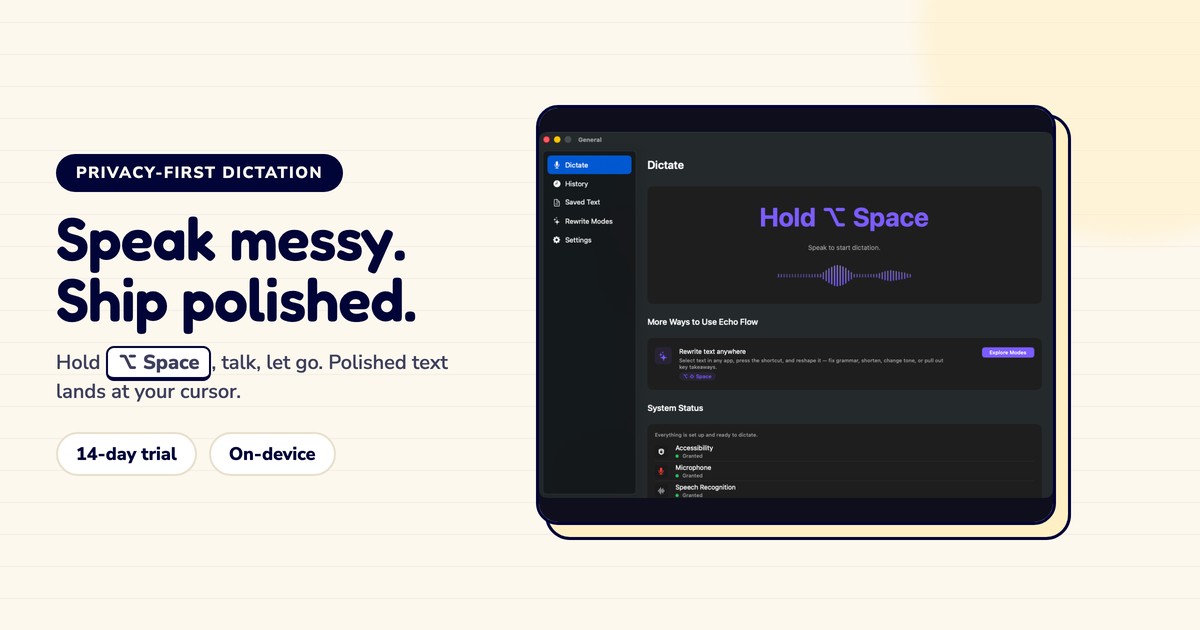
Echo Flow includes diagnostics for recogniser warmup and active locale because "try shouting" is not support.
To insert text into another app, a dictation tool often needs Accessibility permission. That permission enables simulated paste or selected-text replacement.
It is powerful, so it should be explained plainly. The job is not vague "productivity enhancement." The job is paste.
If transcription succeeds but text does not land, Accessibility is the first serious suspect.
I missed this for a week. My dictation was perfect , I could see the words in the app. But they never landed in my email. Turns out Accessibility permission was off. One toggle, fixed.
Voice input is not only convenience. It supports people with repetitive strain, mobility limitations, temporary injury, or heavy writing loads. The W3C accessibility fundamentals frames accessibility as making systems usable by more people; dictation fits that spirit only when the whole pipeline is reliable. A microphone button without dependable paste is a half-built bridge.
Native text fields, web editors, secure fields, Electron apps, remote desktops, and custom canvases all behave differently. Some accept paste. Some block replacement. Some do something imaginative and wrong.
A reliable dictation app should fall back by copying the result to the clipboard and telling the user. Silent failure is where confidence goes to drown.
I tested Echo Flow in fifteen apps. Thirteen worked perfectly. One secure password field blocked it (expected). One Electron app required a retry. The clipboard fallback saved me in that second case.
One: check microphone permission. Two: check input device and level. Three: test the built-in mic. Four: check Speech Recognition permission. Five: wait or retry if the model is warming. Six: check Accessibility. Seven: test in TextEdit or Notes. Eight: check whether the result was copied to clipboard.
This order is dull. Excellent. Dull checklists fix things.
I follow this exact order every time something breaks. It has never failed me. Random toggling is not a method. It is a séance with system settings.
Mac dictation breaks at seams, not in a single magical AI blob. Audio, recognition, permissions, and paste each have their own failure modes. Good software exposes those states. Good troubleshooting follows the pipeline.
Put a diagnostics card in front of users before they open a support ticket. Everyone's blood pressure improves.
Try Echo Flow free for 14 days · Setup guide · Why private dictation
Sources