
Rewrite Palette · 8 min read
The Nine Rewrite Actions, Explained Like a Person Actually Writes
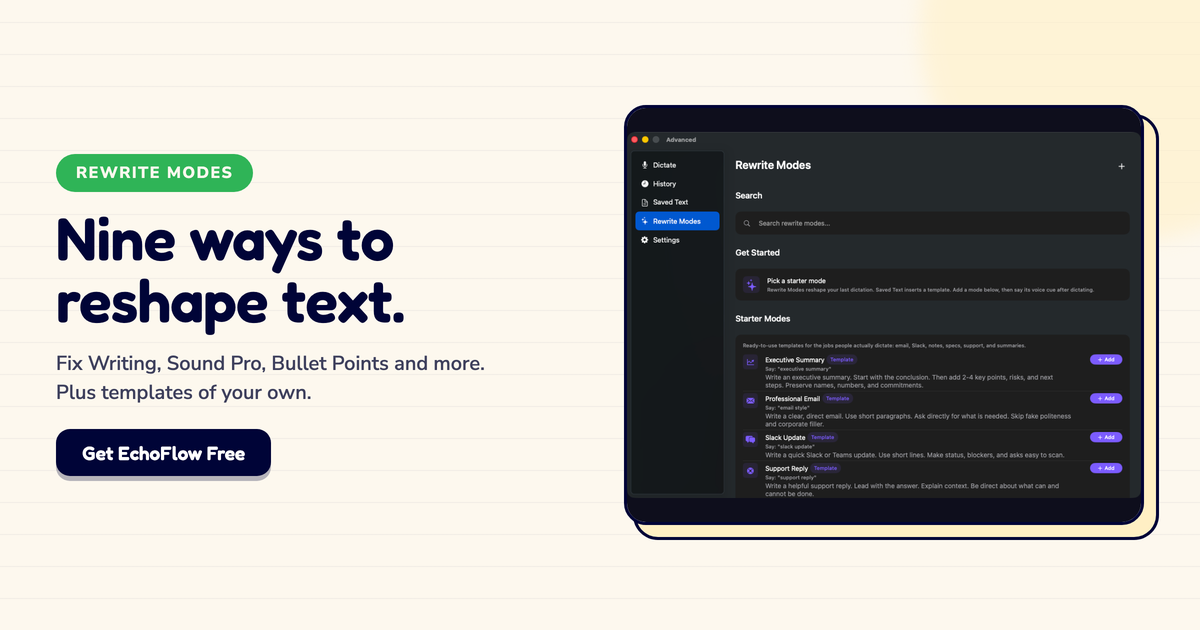
Echo Flow has nine rewrite actions. I use four of them daily. Here's when each one wins.
I built the rewrite palette after tracking my own editing for a week. I noticed I was doing the same transformations over and over: making things shorter, fixing grammar, sounding more professional, extracting bullet points.
So I turned those transformations into actions. Nine of them. Here's how they actually work.
Fix Writing , This is my default. I dictate a rough sentence, select it, click "Fix Writing." Grammar cleaned up, flow improved, meaning unchanged. I use this maybe 20 times a day.
Make It Shorter , My second most-used. I tend to over-explain. "Make It Shorter" cuts the fluff while keeping the point. My emails are 30% shorter since I started using this.
Sound Pro , For anything going to clients or leadership. Takes my casual dictation and shapes it into work-appropriate prose without losing my voice.
Bullet Points , For meeting notes and action items. I dictate a rough paragraph, select it, click "Bullet Points." Instant structure.
Sound Friendly , For team communication. When my "professional" draft sounds too stiff, I warm it up with this.
Sound Confident , For proposals and pitches. Removes "I think" and "maybe" and "sort of." Makes me sound more certain than I feel.
Key Takeaways , For summarizing long emails or documents into executive-ready bullet points.
Smooth Out , Rarely, but sometimes. When my dictation is choppy and I need it to read as one clean sentence.
Keep Original , Sometimes the first version was right. This action does nothing. It's there as a control, and as a reminder that not everything needs rewriting.
I use it more than you'd think. I'll apply "Sound Pro" and think "no, the original was better." Click "Keep Original." Back to my voice.
Here's my typical workflow:
Four actions, 30 seconds, finished draft. That's the workflow I built this tool for.
The nine actions aren't magic. They're just the transformations I found myself doing over and over. Your mileage may vary , you might use "Sound Friendly" daily and never touch "Smooth Out." The palette is there for you to build your own workflow.
Nine actions sounds like a lot. In practice, you'll use three or four regularly. The rest are there for edge cases.
Start with "Fix Writing" and "Make It Shorter." Those two alone will change how you edit. Add the others as you need them.
Try Echo Flow free for 14 days · See the rewrite palette · Why in-place rewriting wins
Sources