
Smart Context · 6 min read
How to Set Per-App Rules Without Spending an Afternoon in Settings
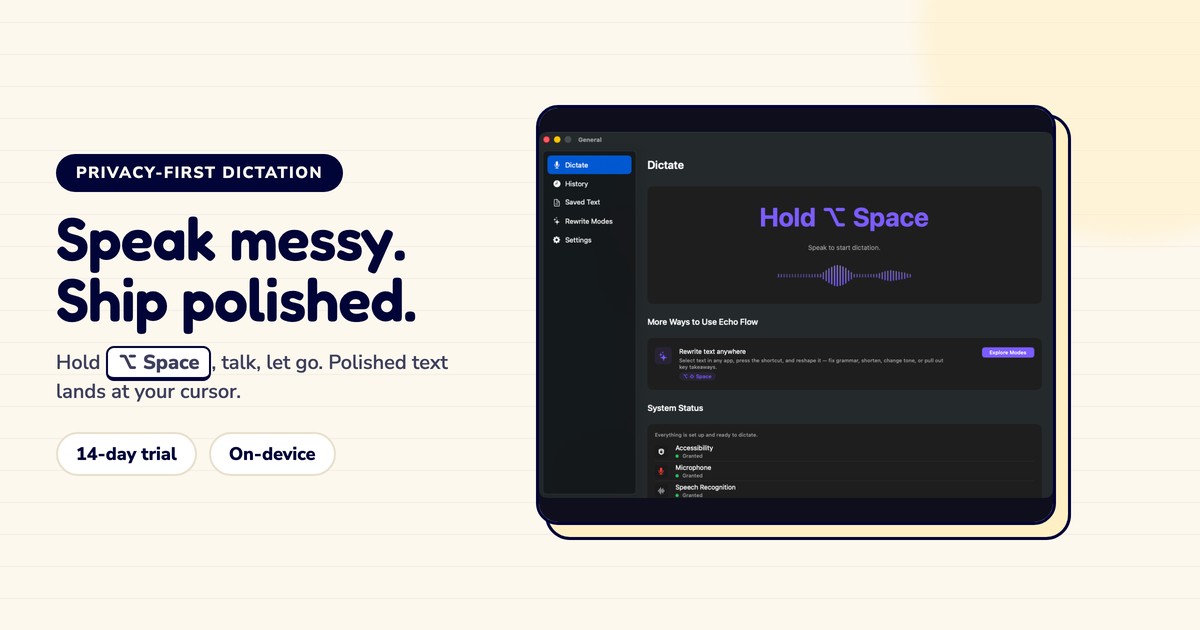
I customized Echo Flow's per-app rules in three minutes. Here's exactly how.
I'm not a settings person. I don't want to spend an afternoon configuring my tools. So I designed Echo Flow's per-app rules to be set up once, in under five minutes, and then left alone.
Here's how it works.
When you first open Echo Flow, it detects your most common writing apps and assigns default profiles:
That's it. You don't have to do anything. The defaults work for most people.
I used Echo Flow for a week before I touched the settings. The defaults were right about 90% of the time.
After a week, I noticed two apps where the defaults were wrong:
Notion was set to "Structured" (notes profile). But I use Notion for formal docs. I changed it to "Formal."
Spark (my email app) was set to "Professional." But I write casual emails to close collaborators. I changed it to "Friendly."
That's it. Two changes. Three minutes. Done.
Here's how to customize:
No sliders. No advanced options. Just pick the app, pick the profile.
Echo Flow ships with five profiles:
I use Professional for email, Casual for Slack, Formal for Notion, and Minimal for code comments.
If the five defaults don't fit, you can create custom profiles.
I created one called "Support Reply" , friendly but professional, with a specific sign-off. I use it for our help desk app.
To create a custom profile:
This takes about two minutes. I've only created one custom profile in six months.
Don't overthink the settings. Start with defaults. Use it for a week. Then customize the one or two apps where the tone feels wrong. That's it.
Per-app rules shouldn't require a manual. Defaults should work. Customization should be quick.
Start with the defaults. Customize later if needed. Three minutes, done.
Try Echo Flow free for 14 days · See how Smart Context works · Why context-aware dictation
Sources